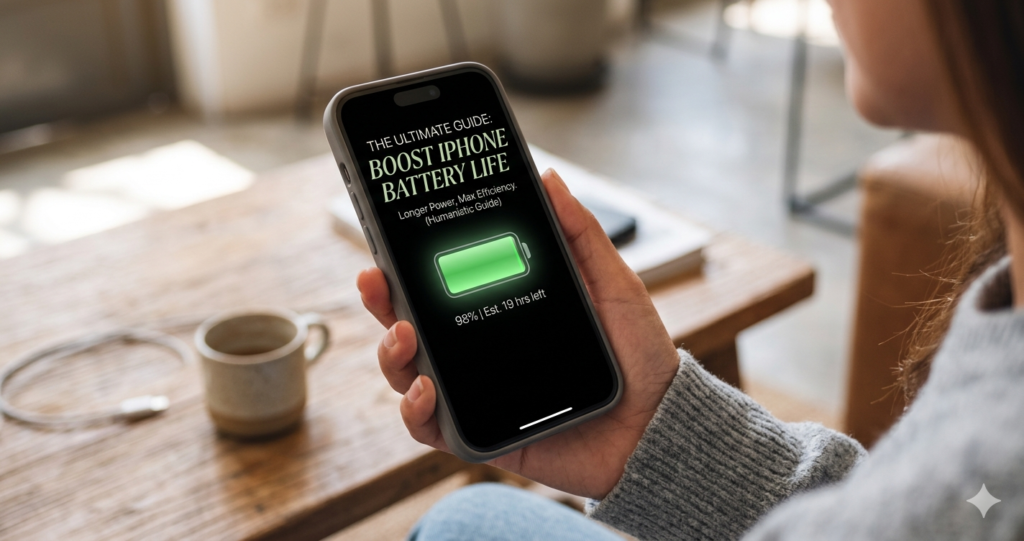
Is there anything more Battery Life on iPhone frustrating than seeing that dreaded “Low Battery” 20% pop-up right when you need your phone the most? We’ve all been there—scrambling for a Lightning cable or a MagSafe pack in the middle of a busy day. While iPhones are masterpieces of engineering, the way we use them often drains their literal lifeblood faster than necessary. This guide isn’t just about turning off your phone; it’s about optimizing your settings so you can enjoy your device longer without living in “Low Power Mode” 24/7. Let’s dive into the practical tweaks that turn a struggling battery into a marathon runner.
What is iPhone Battery Optimization and Why It Matters
Battery optimization is the process of balancing your iPhone’s high-performance features with its energy consumption. It matters because Lithium-ion batteries—the kind inside your iPhone—are chemically aging components. Every time your battery goes through a full charge cycle, its maximum capacity slightly degrades.
By managing how your iPhone consumes power, you aren’t just getting more hours out of your day; you are extending the overall lifespan of the hardware. Modern iOS versions include sophisticated tools like Optimized Battery Charging, which learns your daily routine to wait to finish charging past 80% until you need it. Understanding these features allows you to reduce “background drain”—those silent power thieves like unused widgets, constant GPS pings, and high-intensity visual effects—ensuring that every milliampere-hour (mAh) is spent on things you actually care about.
Step-by-Step Guide to Boosting Your iPhone Battery
Follow these steps to recalibrate your iPhone for maximum endurance. You don’t have to do all of them, but combining three or four will yield noticeable results.
- Check Your Battery Health: Go to Settings > Battery > Battery Health & Charging. If your Maximum Capacity is below 80%, your battery is significantly degraded and may need a physical replacement.
- Identify Power Hogs: Scroll down in the Battery settings to see which apps used the most power in the last 24 hours. If an app you barely used is high on the list, it’s a candidate for deletion or restricted background access.
- Manage Background App Refresh: Go to Settings > General > Background App Refresh. Switch this to “Wi-Fi” or “Off.” There is no reason for a shopping app to be updating its data while it’s closed in your pocket.
- Optimize Display Settings: * Turn on Dark Mode (Settings > Display & Brightness). Since iPhones use OLED screens, black pixels are literally turned off, saving massive amounts of energy.
- Enable Auto-Brightness. Your screen is the biggest power consumer; letting it dim in dark rooms is essential.
- Limit Location Services: Navigate to Settings > Privacy & Security > Location Services. Change apps from “Always” to “While Using.” This prevents your GPS from constantly searching for your position.
- Fetch Data Manually: In Settings > Mail > Accounts > Fetch New Data, change “Push” to “Fetch” (every 30 or 60 minutes). This stops your phone from constantly pinging servers for new emails.
The Math Behind Battery Degradation
To understand battery life, we have to look at Charge Cycles and Depth of Discharge (DoD). A charge cycle is completed when you’ve used an amount that equals 100% of your battery’s capacity—but not necessarily all from one charge.
The chemical health of your battery is often calculated using a simple linear degradation model:
Where:
-
$C_{now}$ is the current capacity.
-
$C_{new}$ is the original design capacity (e.g., 3,277 mAh for an iPhone 15).
-
$n$ is the number of full charge cycles.
-
$\delta$ is the degradation factor per cycle.
Typically, Apple designs batteries to retain up to 80% of their original capacity at 500 to 1,000 complete charge cycles. By keeping your battery between 20% and 80% (avoiding extreme heat and total discharge), you effectively lower the $\delta$ value, meaning your battery stays “younger” for a longer period of time. Heat is the multiplier here; for every few degrees above 35°C (95°F), the chemical breakdown accelerates exponentially.
Real-Life Scenarios
Scenario 1: The Heavy Commuter
Imagine Sarah, who spends two hours on a train daily. She uses 5G, listens to high-res audio, and has her brightness at 100%. By the time she reaches the office at 9:00 AM, her phone is at 65%. By switching to Dark Mode and downloading her playlist for Offline Use (which saves the power used by the 5G modem), she arrives at work with 88% battery remaining.
Scenario 2: The “Ghost” Drainer
Mark notices his iPhone drops 15% overnight while he sleeps. After checking his settings, he realizes “Background App Refresh” is on for 50+ apps and his Mail is set to “Push.” By setting Mail to Fetch and turning off background refreshing for non-essential apps, his overnight drain drops to a mere 2-3%.
FAQs
1. Does Always-On Display (AOD) kill my battery?
While AOD is designed to be efficient by dropping the refresh rate to 1Hz, it still consumes roughly 1% additional battery per hour. If you are struggling to make it through the day, turning this off in Display & Brightness will give you an extra 10-15% by evening.
2. Should I close my apps to save battery?
Actually, no! It is a common myth that swiping apps away saves power. iOS “freezes” apps in the background. If you force close them, the phone has to use more CPU power and battery to relaunch them from scratch next time. Only close an app if it is frozen or malfunctioning.
3. Is it bad to charge my iPhone overnight?
Not anymore. With Optimized Battery Charging enabled, your iPhone will charge to 80%, stop, and then finish the last 20% right before your morning alarm goes off. This prevents the battery from sitting at 100% (high voltage stress) for hours.
Conclusion & CTA
Boosting your iPhone battery life doesn’t require a degree in engineering—it just requires a few intentional “housekeeping” tweaks. By managing your display, restricting background data, and keeping your device cool, you can significantly extend your daily usage and the total lifespan of your phone.
Ready to see the difference? Go through the steps above right now, starting with Dark Mode, and see how much extra time you gain today! For more technical tips and device optimizations, stay tuned to our latest updates.