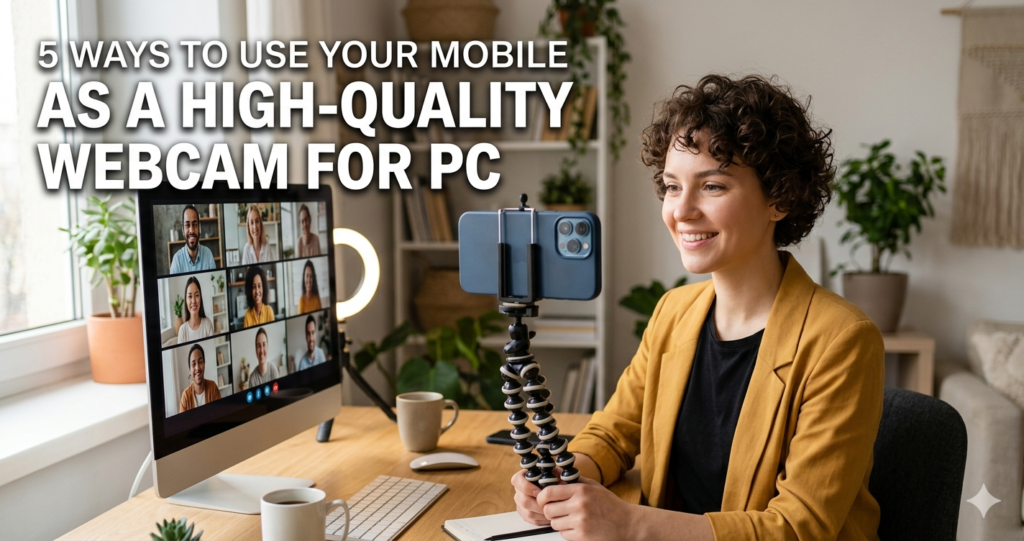
Is your PC’s built-in High-Quality Webcam for PC making you look like a blurry 8-bit character from a 90s video game? You aren’t alone. Most laptop cameras max out at 720p with poor low-light performance, while the smartphone sitting in your pocket likely has a world-class lens capable of 4K video.
Turning your mobile into a webcam is the ultimate productivity hack. Whether you are hosting a professional webinar, recorded an SEO-optimized video, or jumping into a high-stakes client meeting, using your phone’s camera ensures you look crisp and professional. In this guide, we will break down the best tools and methods to bridge the gap between your mobile device and your desktop, saving you hundreds of dollars on external hardware.
What is a Mobile-to-PC Webcam Setup and Why It Matters
Using your mobile as a webcam involves installing a driver on your PC and a companion app on your phone. These two “talk” to each other over Wi-Fi or a USB cable, tricking your computer into thinking your phone is a standard plug-and-play camera.
This matters for three major reasons:
-
Superior Optics: Smartphones have larger sensors and better image processing than almost any standard webcam under $150.
-
Portability: You can move your phone around to show different angles, products, or documents during a live stream.
-
Cost-Efficiency: Instead of buying new gear, you are maximizing the ROI of the expensive smartphone you already own.
Step-by-Step Guide: 5 Ways to Connect Your Phone
Here is how to set up the top tools available today. For the best results, we recommend using a USB connection to reduce lag.
1. Camo (Best for Professional Quality)
-
Install the Camo app on your phone and the Camo Studio on your PC/Mac.
-
Connect via USB for the lowest latency.
-
Use the desktop Studio to adjust brightness, focus, and crop without touching your phone.
2. Iriun (Simplest Setup)
-
Download the Iriun Webcam drivers on your PC.
-
Open the Iriun app on your phone.
-
Ensure both are on the same Wi-Fi network; they will pair automatically.
3. DroidCam (Best for Android Users)
-
Install DroidCam on your Android and the Client on Windows.
-
Enter the IP Address shown on the phone app into the PC client.
-
Check “Video” and “Audio” then hit Start.
4. EpocCam (Best for Mac/iPhone Users)
-
Owned by Elgato, this integrates perfectly with OBS Studio.
-
Install the drivers and open the app.
-
It appears instantly as a source in Zoom, Teams, or Skype.
5. Continuity Camera (Built-in for Apple Ecosystem)
-
If you have an iPhone and a Mac, ensure both have Bluetooth and Wi-Fi on.
-
Open any video app on your Mac.
-
Select your iPhone from the camera list—no extra software required.
The Math & Technology Behind the Image
To understand why your phone looks better, we have to look at Bitrate and Sensor Size.
The quality of a video feed is often determined by the formula:
Standard webcams use tiny sensors ($1/4$ inch or smaller), which struggle to capture light, leading to “noise” (graininess). Smartphones use larger sensors and advanced Computational Photography. Even if the resolution is the same (e.g., 1080p), the smartphone processes the data using a higher bitrate, meaning more “bits” of visual information are sent per second. While a cheap webcam might transmit at 5 Mbps, a modern smartphone can push a much cleaner 20+ Mbps signal to your PC.
Real-Life Scenarios
-
The Remote Professional: Sarah has an important job interview on Zoom. Her laptop camera is grainy. She uses Camo with her phone on a small tripod. The result? A crystal-clear, 1080p feed that makes her look polished and tech-savvy.
-
The Content Creator: Mark wants to record a tutorial for his YouTube channel. He uses DroidCam via USB. This allows him to use his phone’s “Portrait Mode” to naturally blur his background, creating a high-end cinematic look without an expensive DSLR.
-
The Educator: A teacher needs to show a physical textbook. They use their phone as a mobile webcam, allowing them to pick it up and point it at the page while still being able to see their students on the PC monitor.
FAQs
1. Does using my phone as a webcam drain the battery?
Yes, video processing is intensive. It is highly recommended to keep your phone plugged into a power source or use the USB data cable connection to charge while you stream.
2. Can I use the microphone on my phone too?
Most apps like DroidCam and Camo allow you to toggle “Audio” on. This lets your PC use your phone’s high-quality microphone as its primary input.
3. Will the video lag during a meeting?
If you use Wi-Fi, you might experience a slight delay. For professional use, always use a USB connection to ensure the video stays perfectly synced with your voice.
Conclusion & CTA
Upgrading your video quality doesn’t require a trip to the electronics store. By leveraging the power of your smartphone, you can transform your virtual presence instantly. Whether you choose the simplicity of Iriun or the professional controls of Camo, your audience will definitely notice the difference.
Ready to look your best? Download one of the apps mentioned above today and test your new “pro” webcam before your next meeting!